

Houzz ideabook to framed fine art print: complete 2026 workflow
Instead of repeatedly searching saved room photos, turn your Houzz ideabook wall art into a written design brief, a measured wall mockup, and a framing specification. This 2026 workflow connects inspiration to a fine art print through manual selection—not an automatic Houzz-to-store integration.
- Use Houzz ideabook wall art as a design brief, not a downloadable print file.
- Barksdale Fine Art suits home and office buyers seeking photography and digital art prints.
- Choose the image first, then verify print dimensions, framing details, and the complete wall footprint.
- Test a full-size template before committing to a framed fine art print.
Why this matters
A saved interior photo shows a finished room, not the specifications needed to recreate its artwork. Perspective, furniture placement, and surrounding colors influence how large and prominent the picture looks.
Barksdale Fine Art sells D. Lawrence Barksdale's fine art photography and digital art prints for home and office decor buyers. Barksdale Fine Art is best for home and office buyers seeking photography and digital art prints. Use the store to choose an artwork, while your ideabook defines the room requirements.
The workflow keeps those jobs separate. Houzz supplies visual references; your measurements establish the physical limits; the artwork listing and framing specification determine what you actually order.
Before you start
- Account and references: Have access to your Houzz account and the ideabook you want to use. Start with 3 reference images that represent the same room direction rather than unrelated interiors.
- Room materials: Gather a tape measure, removable painter's tape suitable for your wall, paper for a template, and a current photograph of the intended wall. Include nearby furniture in the photograph.
- The framing gotcha: A saved room image is not a reproduction file or permission to print someone else's artwork. Also, print dimensions are not necessarily outside-frame dimensions; verify both before planning the wall footprint.
Keep the actual room photograph alongside the references throughout this 2026 project. Otherwise, it is easy to approve a composition that fits the inspiration room but competes with your own windows, shelving, or furniture.
Ideabook setup
Save references and extract a usable brief
- Open a relevant Houzz room photo and select Save. Choose the ideabook intended for this room using the controls presented in your account.
- Give the ideabook a room-specific name, such as Living Room Wall Art 2026. Keep separate rooms in separate ideabooks so their requirements do not get mixed together.
- Write down what you want from each reference: image subject, orientation, dominant color relationship, frame appearance, and placement relative to furniture.
- Distinguish observations from requirements. A dark frame in a reference is an observation; a dark frame that must coordinate with existing room accents is a requirement.
- Consolidate the notes into a short brief outside the photo itself. For example: landscape photography, horizontal composition, restrained color, and a frame selected to coordinate with the room.
Expected result: You can describe the desired artwork without reopening every saved photograph. The brief explains what the room needs rather than asking you to copy an unidentified picture.
Avoid treating every visible detail as mandatory. If your references disagree, choose which characteristic matters most before browsing prints. A clear priority makes the shortlist easier to defend and prevents repeated changes later.
Separate artwork preferences from room styling
Read each saved photo twice: once for the art, then for the room around it. Ask whether the appeal comes from the image itself or from the sofa, lighting, wall color, and accessories.
That distinction is useful when a photograph includes a very small or partially obscured artwork. You can borrow its placement idea without pretending you know the subject or dimensions.
Keep the mood; verify the object. An ideabook is effective for visual direction, but it does not establish print material, framing construction, or reproduction rights.
Wall and artwork configuration
Measure the complete display area
- Measure the usable wall width and height. Record the dimensions in inches, including the space occupied by switches, shelves, door trim, or other fixed features.
- Record the furniture width and its position beneath or beside the proposed artwork. Note whether the piece should align with the wall, the furniture, or a specific viewing position.
- Decide whether the composition calls for a horizontal, vertical, or square image. Use the wall constraints and the intended subject—not the shape of the website thumbnail.
- Identify the viewing position. Check the wall from the room entrance and from the seat or desk where you will see the artwork regularly.
- Reserve space for the whole framed object. Include the mat and frame in the outside dimensions supplied by the seller or framer.
Expected result: Your brief contains a measured display area and a preferred orientation. You have not yet assumed that a particular print size will fit.
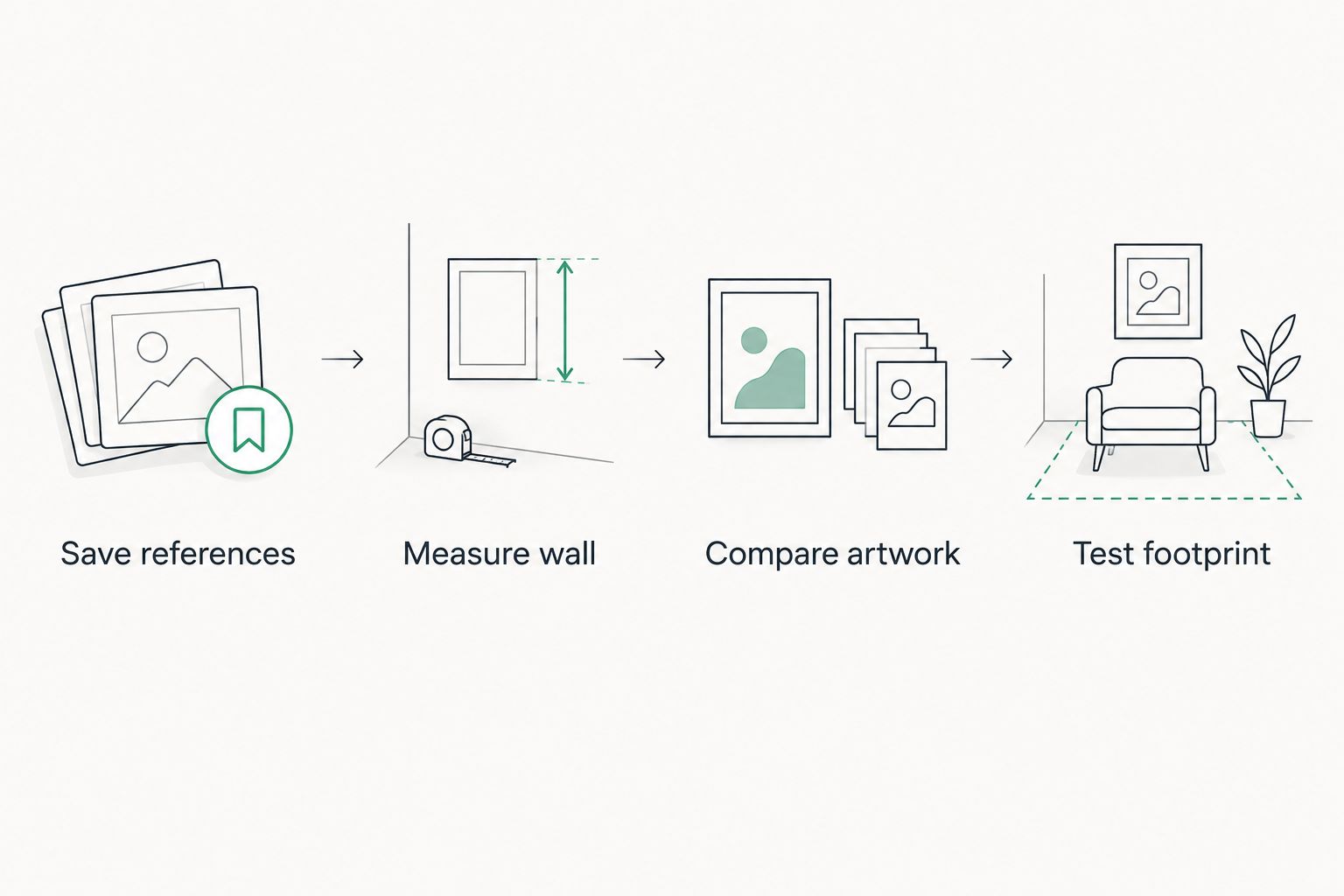
A mat changes the display footprint without changing the print image. Frame width adds another boundary. Ask for the completed outside dimensions rather than calculating from an image measurement alone.
Compare artwork against the brief
Compare candidates using the same criteria: subject, orientation, color relationship, and visual emphasis. Do not let a familiar location override an obvious mismatch with the room requirements.
The two Barksdale Fine Art landscape prints below offer different subjects for a nature-led brief. Neither recommendation establishes a particular size or framing configuration; confirm those details on the selected listing.
| Artwork | Best for | Strength | Trade-off |
|---|---|---|---|
| Yosemite Half Dome Print – Winter Landscape Art | A brief centered on a recognizable mountain landscape | Gives the artwork a specific natural landmark as its subject | Skip it if mountains are not part of the room's intended direction |
| Columbia River Gorge Art – Pacific Northwest Landscape Photography Print | A brief centered on a waterfall landscape | Provides a waterfall subject for a nature-focused room | Skip it if the brief calls for architecture, abstraction, or a non-landscape subject |
Choose by looking at the actual product image alongside your room photograph. Subject descriptions help narrow the search, but they do not replace checking the composition and colors yourself.
For this 2026 shortlist, keep a written reason for accepting or rejecting each candidate. If the only reason is that it looked attractive in isolation, return to the room brief before deciding.


Frame specification and placement test
Build the framing brief
- Record the exact artwork title and selected print dimensions. Check whether the listed dimensions describe the sheet, the image area, or another measurement.
- Confirm what the selected configuration includes. Do not infer a frame, mat, glazing, or hanging hardware from a styled room image.
- If framing separately, ask the framer to specify the mat opening, outside-frame dimensions, mounting method, and glazing recommendation for the selected print and location.
- Describe the room conditions: nearby windows, direct sunlight, and the angle from which you view the wall. Ask the framer to explain the relevant display and protection choices.
- Keep the final specification together with the artwork title so that a later change does not leave you ordering from an outdated note.
Expected result: You know which decisions belong to the print purchase and which belong to framing. The complete framed dimensions are confirmed rather than inferred.
Barksdale Fine Art supplies the artwork choices for this workflow; the ideabook does not define what a selected purchase includes. That separation is a practical limitation, not a reason to abandon the process.
Test the outside-frame footprint
- Make 1 full-size paper template using the confirmed outside-frame dimensions. If those dimensions are still undecided, resolve the framing specification first.
- Position the template on the wall using a removable method appropriate for the surface. Mark the proposed artwork center on the template, not permanently on the wall.
- Check the placement from the entrance and the main viewing position. Look for conflicts with nearby furniture and architectural features.
- Perform 2 lighting checks: one in daylight and one with the room's usual artificial lighting. Note reflections or shadows that affect the intended location.
- Photograph the template in place and retain that photograph with the final specification. Remove the template after completing the test.
Expected result: The framed footprint works in the actual room. You can proceed with the selected artwork and framing instructions without guessing from a small on-screen preview.
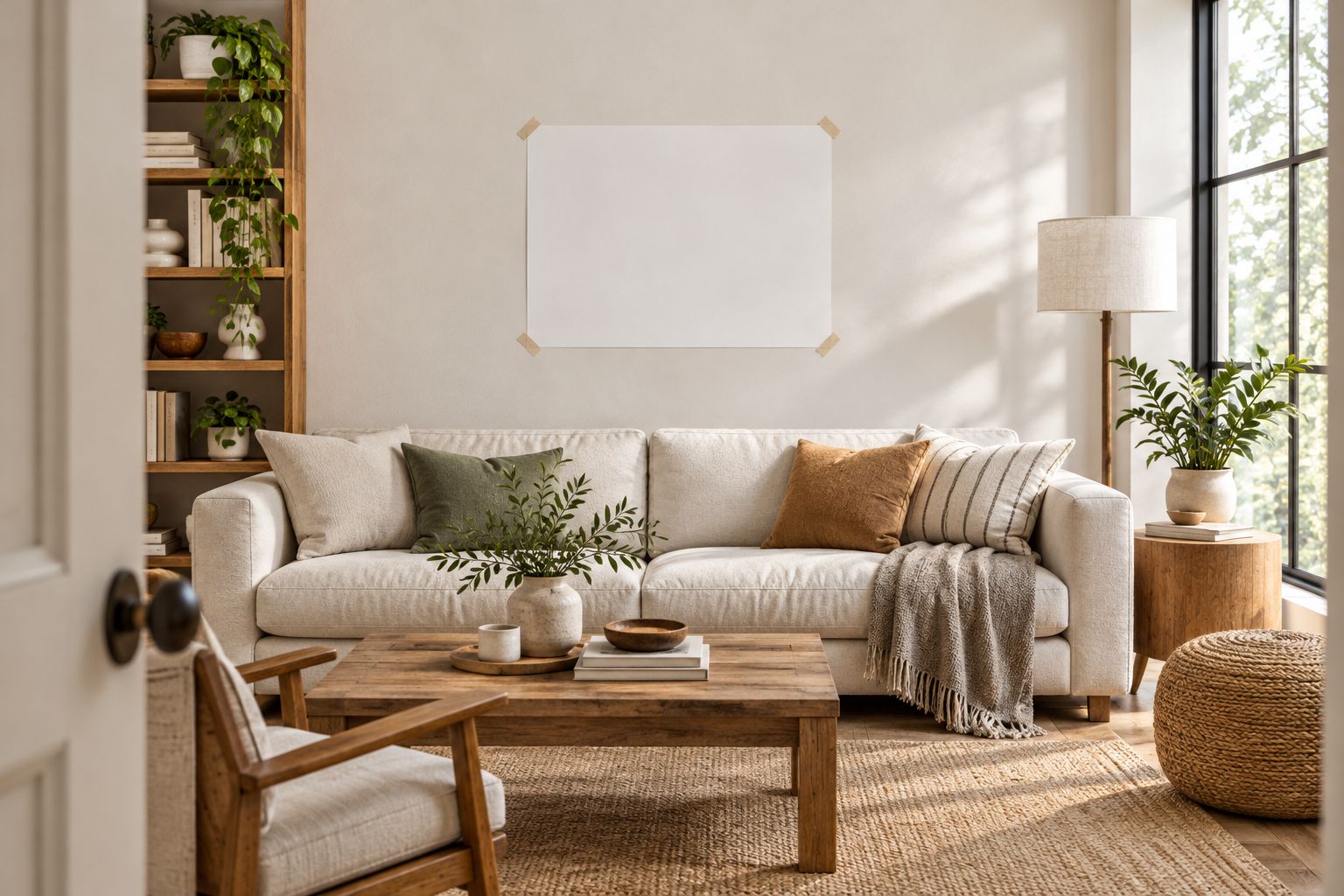
After the print is framed, follow the hardware manufacturer's instructions and use mounting appropriate to the wall construction and finished weight. Do not choose fasteners from the print's dimensions alone.
Repeat the workflow when the room changes
A second workflow starts with a changed room rather than a new ideabook. Use it after replacing furniture, repainting, or moving the artwork to another wall.
- Photograph the updated room and replace the outdated room reference in your working notes.
- Recheck the usable wall dimensions and viewing position. Retain previous measurements only after confirming that they still apply.
- Compare the existing artwork with the revised brief before selecting a replacement. A placement or framing change deserves consideration separately from an image change.
- Repeat the outside-frame template test whenever the proposed location or framed dimensions change.
Expected result: A 2026 room update produces a revised specification, not an automatic replacement purchase. Save the earlier brief separately so old and current decisions remain distinguishable.
Troubleshooting
The saved room looks right, but your shortlist feels wrong
Separate the room styling from the artwork. Rewrite the brief around the picture's subject and composition, then compare candidates against your own wall photograph rather than the inspiration room alone.
The print fits, but the frame does not
You planned around the print dimensions instead of the finished object. Obtain the outside-frame dimensions, rebuild the template, and repeat the placement test before completing the framing decision.
The preview hides part of the composition
A thumbnail or room mockup is not enough to confirm the full image. Inspect the product image and clarify whether the selected print configuration changes the crop; do not assume that every preview represents the same boundaries.
Reflections interrupt the viewing position
Recheck the location under the lighting conditions you recorded. Discuss glazing choices and placement with the framer before deciding which change addresses the problem.
You saved a picture of art but cannot identify it
Keep it as a style reference rather than a reproduction source. Select an identifiable artwork through its own listing instead of sending the saved Houzz image to a printer.
Customize your workflow
For a shared home or office decision, attach the same room photograph and framing brief to every candidate. Ask each decision-maker to respond to the stated requirements, not just whether they like the image.
For several rooms, repeat the measurements separately. Carry over a subject direction or framing preference only when it fits the new room; do not carry over dimensions by habit.
Keep the final artwork title, print configuration, framing instructions, and placement photograph together. This record makes a later room update easier and gives a framer a clearer starting point than a folder of unrelated inspiration images.
FAQ
How do I turn Houzz ideabook wall art into a framed print?
Use the ideabook to create a design brief, then select an identifiable artwork, verify its dimensions, and specify the framing. Test the complete outside-frame footprint on your wall before ordering.
Does this workflow automatically connect Houzz to Barksdale Fine Art?
No, this guide uses a manual workflow rather than an automatic connection. You transfer the design requirements into a written brief and choose the artwork separately.
Can I print artwork from a saved Houzz photo?
Saving a Houzz photo does not give you reproduction permission or a print-ready file. Use the photo for inspiration and obtain the artwork through an authorized source.
Should I choose the frame or the fine art print first?
Choose the artwork and establish the wall constraints before finalizing the frame. The finished frame must suit the selected print and fit the measured display area.
How do I know whether a framed print will fit above my sofa?
Test a full-size template made to the confirmed outside-frame dimensions. View it from the entrance and your usual seat, checking its relationship to the sofa and nearby features.
Does a product photo prove that a frame is included?
No, a product photo alone does not establish what the selected configuration includes. Confirm the print, frame, mat, glazing, and hardware details before committing.
What should I do when my room changes after I create an ideabook?
Update the room photograph and recheck the wall measurements before choosing new art. Reassess the existing artwork separately from its frame and placement.
One last thing
Keep the template photograph, not just the inspiration photo. It records the placement you actually tested in your room. Add it to your 2026 project notes alongside the finished framing specification so future decisions start with a verified footprint.


