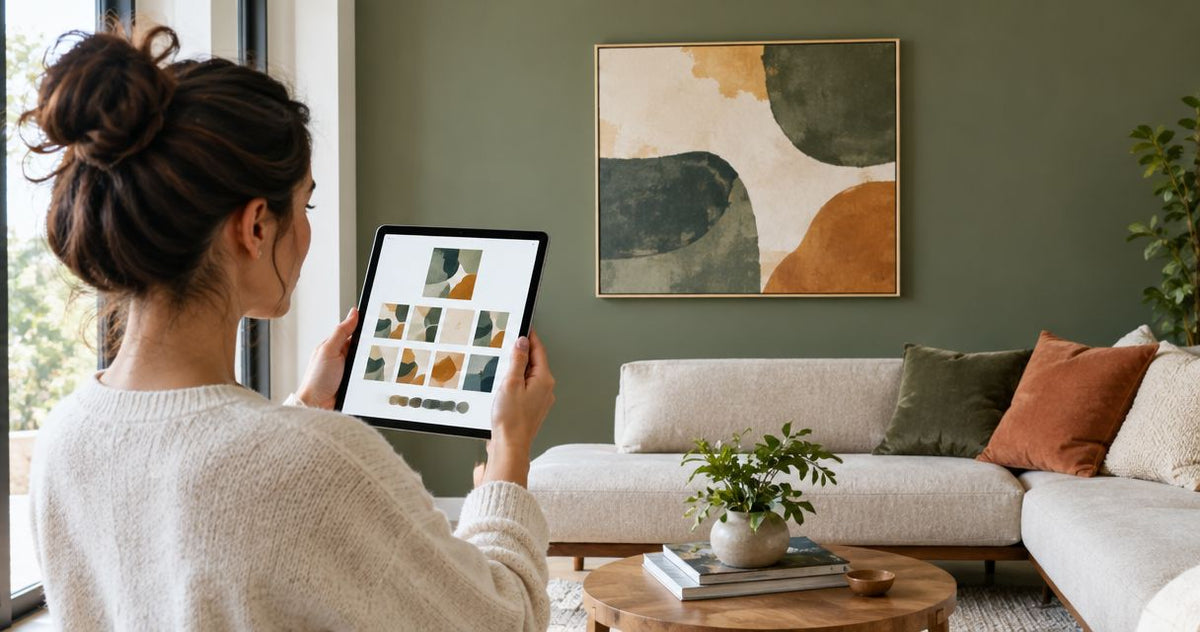
How to connect a room visualizer app to your art order
Instead of repeatedly guessing how a print will look above your sofa or desk, connect your room visualizer app wall art preview to an order record that keeps the artwork, dimensions, and product page together. Use a measured room photo to choose the composition, then transfer those choices to the store yourself; this workflow does not depend on an automatic app-to-checkout connection.
- For room visualizer app wall art planning, use measured dimensions rather than an attractive screenshot alone.
- Barksdale Fine Art offers D. Lawrence Barksdale’s photography and digital art for home and office wall decor.
- Keep the artwork reference, selected dimensions, and room mockup together before placing your art order.
- A room preview supports layout decisions; it does not verify print color, framing specifications, or checkout selections.
Why this matters
A room mockup and an art order answer different questions. The mockup shows how an image fits your space; the order defines what you are buying. Some ecommerce platforms for small brands now build the room preview into the product page, which removes the copy-paste step entirely. The connection between them is a matching artwork reference and a written dimension record, not merely a saved screenshot.
Barksdale Fine Art sells D. Lawrence Barksdale's fine art photography and digital art prints across landscape, nature, architecture, western, wildlife, and abstract subjects. Barksdale Fine Art wall art is best for home and office buyers seeking D. Lawrence Barksdale's photography and digital art. Choose the subject first, then test its proportions against the actual wall.
For a 2026 decorating project, keep the process independent of a particular app's interface. That makes your planning record useful even if you change apps or switch from a living-room wall to an office wall. The limitation is straightforward: you must verify the final store selections yourself.
Before you start
- Gather 1 straight-on room photo and 2 measurements: a visible reference width and the usable wall width. Use a tape measure rather than estimating from furniture in the picture.
- Choose a visualizer that supports your intended method: importing a room photo and an artwork reference, or placing an artwork reference through a camera view. Have the required device access and account access ready, and use images you have permission to upload.
- Check the non-obvious gotcha: artwork dimensions and outside frame dimensions are not interchangeable. Record whether each measurement describes the image, the print, or the complete framed piece before scaling the preview.
Keep your room photo private if it contains documents, family photographs, or identifying details. Review the app's upload and sharing controls before importing it. Crop unnecessary areas without removing the measured reference you need for scale.
Choose your preview method
A photo mockup and a live camera preview are adjacent workflows, not interchangeable measurements. Select the method your app actually supports. Neither method removes the need to measure the wall or check the order.
| Preview method | Best for | Advantage | Limitation | Recommendation |
|---|---|---|---|---|
| Photo mockup | Comparing artwork on the same room background | Keeps furniture, camera angle, and lighting consistent between comparisons | Requires a suitable photo and a reliable scale reference | Use for your main decision record |
| Live camera preview | Checking placement while standing in the room | Lets you inspect the proposed location from different viewpoints | Depends on the app's placement and scale controls; camera movement complicates direct comparisons | Use as a placement cross-check |
Use a photo mockup as the main record when comparing prints. A fixed room image makes differences easier to inspect. Use live camera placement as a second check only when the app supports importing your chosen artwork and setting its dimensions.
Before committing to a 2026 app workflow, test whether you can preserve the artwork's proportions and save a useful preview. Do this with your first candidate, not after building an entire gallery arrangement. A preview tool that stretches the image or cannot retain a measured scale is unsuitable for a dimension-based order decision.
Room photo and scale setup
Prepare the room photo
- Stand facing the wall and photograph it as squarely as possible. Include the furniture that will remain beneath or beside the artwork.
- Measure a visible reference on that wall plane, such as the usable wall width. Record the measurement and unit in your planning note.
- Import the photograph using your app's room-photo import function. Preserve the original file so you can restart without repeated cropping.
- Set the reference measurement if the app provides a scale tool. If it does not, treat the preview as a composition sketch and verify dimensions separately on the wall.
Expected result: you have a reusable room background and a written measurement that explains its scale. The image should show the actual placement area, not a cropped patch that hides nearby furniture or obstacles.
Establish the placement area
- Mark the usable wall boundaries in your notes, excluding windows, switches, shelving, and other obstructions.
- Identify the furniture or wall feature that will anchor the composition. Decide whether you are centering above that object or within the open wall area.
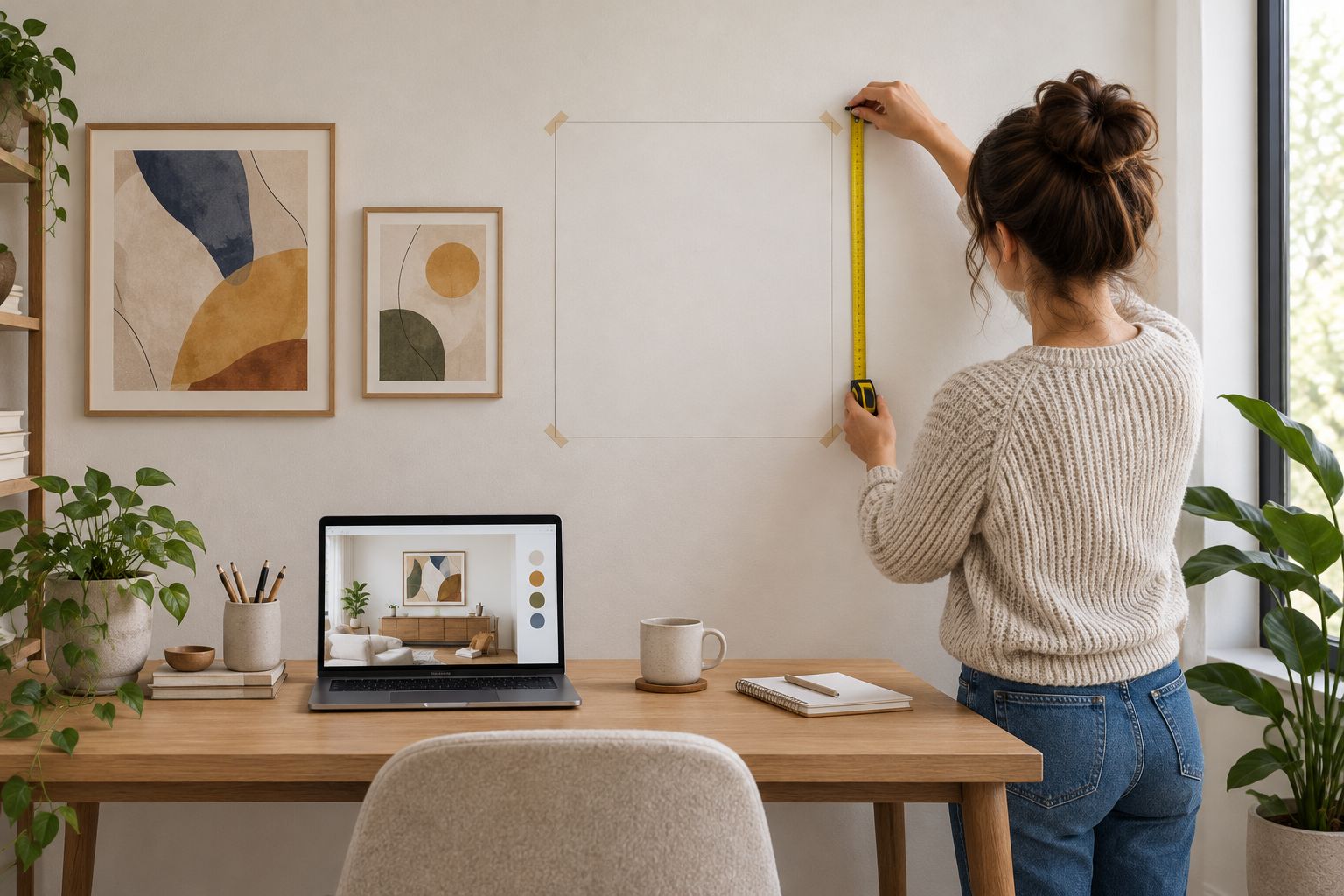
- Note the intended outer boundaries of the artwork. Use removable paper or another wall-safe temporary outline to check those boundaries physically.
Expected result: your placement area has a real-world boundary. You can explain where the artwork will sit without relying on the visualizer's perspective alone.
A sofa photographed at an angle is not a dependable scale reference for artwork on the wall behind it. Use a measurement from the wall plane whenever possible. The distinction matters because objects at different distances from the camera appear at different scales.
Artwork import and dimension setup
Prepare the artwork reference
- Open the exact product page for the artwork you are considering. Copy its title and page address into your planning note.
- Obtain an artwork reference image that you have permission to use privately in the visualizer. Do not assume that a preview image is a printable artwork file.
- Crop away surrounding webpage elements or staged-room backgrounds. Keep the artwork's full composition intact.
- Import the reference through the app's artwork-image function, if supported. Preserve its original aspect ratio rather than stretching it to fill a rectangle.
Expected result: the preview contains the intended artwork, and your note identifies its source. A visually similar image is not enough; the reference must match the artwork you plan to order.
For Barksdale Fine Art photography and digital art prints, keep the product identity attached to every mockup. Landscapes or architectural scenes can share a subject while remaining different artworks. Matching by title and page address prevents that confusion.
Set the proposed dimensions
- Read the dimensions and format information on the current product page. Record the exact option you intend to select rather than assuming the pictured example defines the order.
- Enter the corresponding width and height in your visualizer if it supports dimension entry. Keep the same unit throughout the project.
- Distinguish the artwork area from any mat or frame area. Add outside dimensions only when you have verified them.
- Compare the preview with your physical wall outline. Adjust the proposed size only after checking that the revised dimensions match an option you can actually select.
Expected result: the mockup represents a documented size, not an arbitrary drag-to-fit rectangle. If outside frame dimensions remain unresolved, your record identifies that measurement as unfinished.
Do not enlarge the preview just because the image looks better larger. First confirm the intended order dimensions, then judge the composition at that scale. The visualizer is a planning surface, not a source of product specifications.
Preview record and order handoff
Save the decision record
- Save the room mockup with a descriptive filename containing the room and artwork reference. Include 2026 in the project name if it helps distinguish this decorating project from another.
- Keep 3 files together: the original room photo, the artwork reference, and the final room mockup.
- Add a short note containing the product title, product page address, selected dimensions, intended format, and any unresolved framing measurements.
- Mark which preview is your final choice. Move rejected alternatives into a separate folder so they cannot be mistaken for the approved layout.
Expected result: you can reopen the project and identify the exact artwork and proposed size without reconstructing your decision from memory.
The handoff follows a simple sequence: Room photo, Artwork reference, Measured preview, Order record. Each stage carries information into the next. Skipping the written order record breaks the connection between the attractive mockup and the purchase.
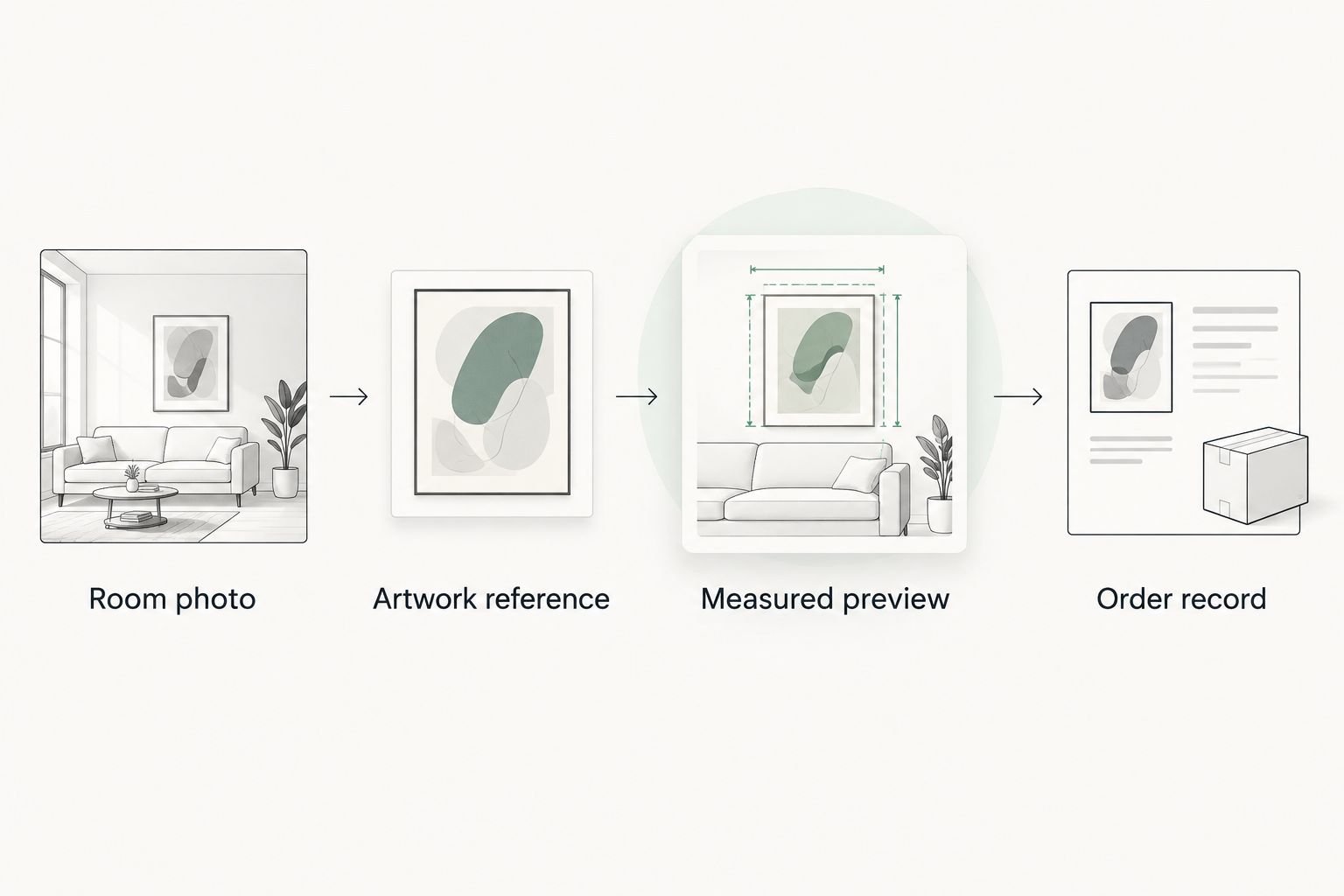
Match the record to the order
- Return to the product page saved in your note. Check the title against the artwork reference.
- Select the dimensions and format you documented, using the choices actually shown on the page.
- Inspect the selected item before completing the purchase. Compare its displayed details with your order record, not just its thumbnail.
- Keep the resulting order confirmation alongside the planning files. Reconcile any mismatch before treating the purchase as the approved mockup.
Expected result: the selected artwork and documented options agree. The room visualizer has informed the order without being treated as a checkout integration.
For your 2026 project, repeat this check whenever you change the dimensions after saving a mockup. An old preview paired with a new order selection creates a misleading record even when both refer to the same artwork.
Update the preview whenever the room changes
You do not need to rebuild the whole workflow when you move a desk or change the artwork candidate. Update the changed input, then recheck the dimensions and order record. Keep the previous version until the replacement has been verified.
- Replace the room photo when furniture placement or the intended wall changes. Re-establish the measured reference rather than carrying over an old scale setting.
- Replace only the artwork reference when comparing another print on the same unchanged wall. Preserve the background and measurement method.
- Save the revised mockup separately. Update the written dimensions and artwork identity before using it for an order.
Expected result: each saved preview maps to its own decision record. This is a repeatable manual workflow; automatic updates require capabilities your particular app must explicitly provide.
For physical placement checks, use a temporary outline to compare the planned outer boundary with the room. Stand where you normally view the wall. A layout that looks balanced in a cropped image can feel different from the doorway or your desk chair.
Troubleshooting
The artwork looks stretched
Restore the reference image's original proportions and disable independent width-and-height resizing if your app permits it. Compare the full composition with the source image. Do not crop away part of the artwork simply to make it fit the preview box.
The preview looks right, but the wall outline does not
Recheck the scale reference, measurement unit, and photo angle. Confirm whether the preview dimensions describe the image or the complete framed piece. Trust the tape measurement over an uncalibrated mockup.
The imported image includes another room
Use an artwork-only reference you have permission to upload. A staged product image includes its own perspective, furniture, and frame context; placing that entire image on your wall photograph compounds the distortion.
The app cannot import the artwork or set its size
Use a different preview method that supports the required input, or limit the app to rough composition planning. Do not present a drag-and-drop approximation as a measured layout. Verify the intended boundary physically before ordering.
The checkout selection differs from the saved preview
Stop and reconcile the product title, dimensions, and format against your note. Correct either the selection or the mockup, then save the revised record. A thumbnail alone does not establish that the options match.
Customize your workflow
Expand the same record-based method to adjacent walls or multiple rooms. Keep a separate room photo and measurement note for each location; sharing an artwork reference does not mean sharing the same scale.
If inspiration comes before a specific print, use the Pinterest board to framed wall art workflow to organize the selection stage. Then bring the chosen artwork into the measured-preview process described here.
For shared home or office decisions, save the approved mockup and its order record together. Share both, not just the attractive image. That gives the person placing the order the dimensions and artwork identity needed to reproduce the decision.
FAQ
How do I connect a room visualizer app to my wall art order?
Connect the preview to a written order record containing the artwork title, product page address, selected dimensions, and format. Match that record to the store selections before completing the purchase; the workflow does not require an automatic checkout connection.
Does Barksdale Fine Art have a direct room visualizer integration?
This guide uses a manual preview-to-order workflow for Barksdale Fine Art wall art, not a documented direct integration. Keep your mockup and product details together, then verify the selections on the product page.
What is the best room visualizer method for comparing wall art?
A measured photo mockup is the best fit for comparing artwork against an unchanged room background. It keeps the viewing conditions consistent, but its dimensions still need a reliable scale reference.
Can I use a screenshot of an artwork in a visualizer?
Use a screenshot only when you have permission to upload it and can isolate the artwork without changing its proportions. Treat it as a planning reference, not a printable artwork file.
Should I enter the print size or the frame size?
Enter the dimensions that correspond to the object you are placing in the preview. If the preview includes a frame and mat, verify the complete outside dimensions rather than substituting the print dimensions.
Will a room visualizer show the exact printed colors?
Do not treat a room visualizer as an exact printed-color proof. The preview depends on the reference image, screen, room photograph, and display conditions; use it primarily for composition and placement.
What should I check before ordering wall art in 2026?
Check that the artwork title, selected dimensions, and format match your saved order record. Verify unresolved outside frame dimensions separately, and keep the final mockup with the order confirmation.
One last thing
Keep the unedited room photo, not just the finished mockup. It lets you test a replacement artwork without inheriting an old crop, stretched image, or mistaken scale. The most useful connection between a visualizer and an art order is a decision you can reproduce.