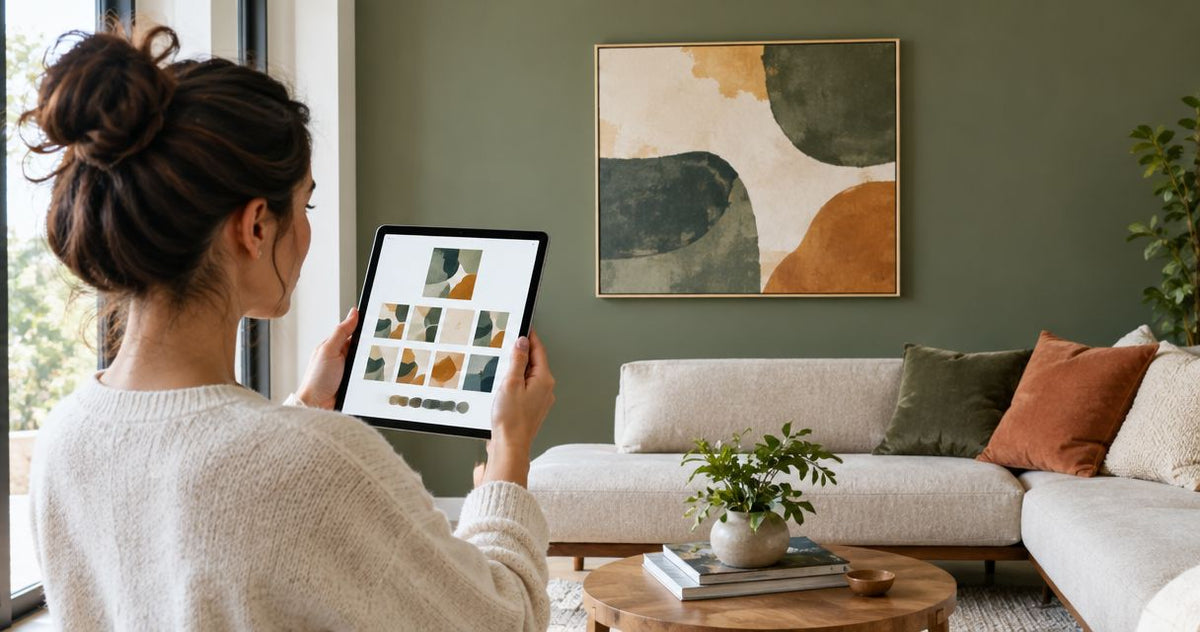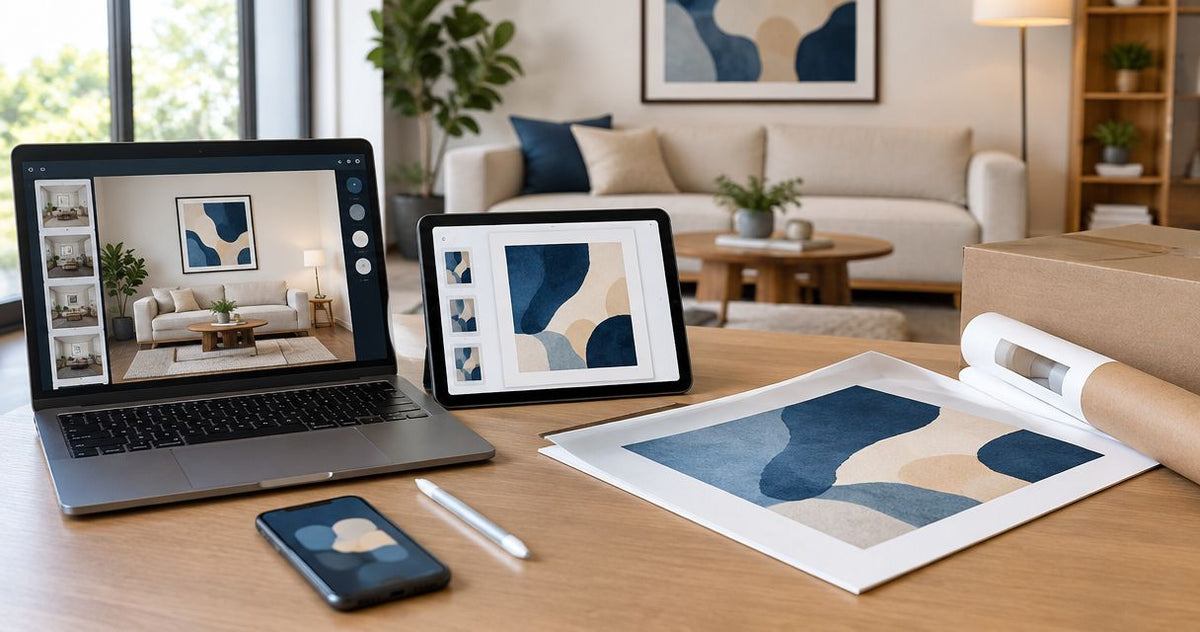
Virtual staging to real fine art prints: complete 2026 workflow
Instead of manually hunting for artwork that resembles a staged room, build a virtual staging fine art prints workflow around a real product image, measured wall dimensions, and a saved selection record. You will move from a 2026 room concept to an orderable print without treating generated artwork as a product you can buy.
- Barksdale Fine Art is best for home and office buyers seeking photography and digital art prints, not staging software.
- Build your virtual staging fine art prints workflow around actual artwork, measured proportions, and a saved product record.
- Use room mockups to judge placement; verify print dimensions and framing separately before ordering.
- Keep generated staging images separate from artwork files and physical installation instructions.
Why this matters
A staged room shows a decorating idea, not a purchasing specification. The artwork on its wall can be invented, stretched, or shown inside a frame that has no connection to a real print.
Barksdale Fine Art is best for home and office buyers seeking photography and digital art prints, not staging software. Start with an actual work from Barksdale Fine Art, then use staging to test its relationship to your room.
The practical benefit is traceability. Your final mockup, selected print, and installation plan should all point to the same artwork rather than three similar-looking images.
For a 2026 decorating project, save the decision record alongside the room image. A beautiful rendering is useful only when you can explain what it represents and reproduce the intended arrangement physically.
Before you start
- Gather room measurements and photographs. Record the usable wall width, furniture width, obstructions, and intended artwork location. Photograph the wall straight on for scale checks; keep an angled photograph for a separate perspective check.
- Prepare your editing access and selection record. Use an image editor that supports separate layers, proportional resizing, and export. Keep a worksheet or document for the product reference, print dimensions, outer frame dimensions, and approved mockup; no store integration is required.
- Check image permissions and framing assumptions first. Access to a product photograph does not establish permission to republish it. Confirm permitted use before uploading it to a third-party service, and do not assume that a pictured frame or mat is included with the print.
The main setup trap is confusing print size with finished frame size. A mockup scaled to the paper dimensions will not represent the installed footprint if you later add a mat and frame.
Room reference and scale
Establish a measured wall reference
- Photograph the wall with the camera facing it as directly as possible. Include a physical feature you can measure, such as the furniture beneath the proposed artwork.
- Measure that reference in the room. Record its width and unit rather than estimating from the photograph.
- Create a worksheet entry labeled Room reference. This is your own record label, not a staging-app setting.
- Record the artwork location under Placement. Describe whether the composition centers on the furniture, usable wall, or another deliberate reference.
- Note anything the rendering must not conceal: outlets, switches, trim, doors, shelving, and wall-mounted equipment.
Expected result: You have a room photograph with a known physical reference and a clearly defined installation area.
A straight-on photograph supports a useful proportional check. An angled photograph introduces perspective: objects at different depths do not share a simple pixel-to-inch relationship.
Calculate the mockup footprint
Use a hypothetical example to understand the calculation, not as a recommended product size. If a 36-inch reference spans 600 pixels in a straight-on photograph, a 24-inch-wide artwork at the same wall plane should span 400 pixels: 600 × 24 ÷ 36.
The calculation controls width only. Preserve the artwork's proportions when setting height, and use the intended outer frame dimensions when modeling the complete framed object.
Do not measure a sofa in the foreground and apply that scale unquestioningly to the wall behind it. Choose a reference at the wall plane, or treat the mockup as a composition study and confirm the footprint with a physical template.
Expected result: The artwork rectangle represents an explicit physical width rather than a size chosen because it looks attractive on screen.
Artwork selection record
Choose an actual print before refining the staging
- Select artwork with a subject and composition you want to live with, not merely colors that match the rendering.
- Record its exact product title and product reference under Artwork record. Preserve the title so a similarly named work cannot replace it accidentally.
- Review the product information for the dimensions and format you intend to order. Leave unknown details unresolved rather than filling them from the mockup.
- Obtain a product image suitable for your permitted preview use. Keep an untouched copy separate from the room composite.
- Record the proposed print dimensions and finished frame dimensions separately. Mark any unconfirmed framing choice as a concept, not an order specification.
Expected result: You can identify the real artwork independently of the staging file and explain which details still require confirmation.
Barksdale Fine Art sells D. Lawrence Barksdale's photography and digital art prints for home and office decor. That supplies the artwork-selection starting point; it does not establish a direct connection between a staging app and the store.
Compare artwork by the room's intended emphasis
These two real print options illustrate different subjects you can test. The recommendations concern decorating intent, not guaranteed effects on mood or a claim that either image suits every room.
| Print option | Best for | Reason to test it | Trade-off |
|---|---|---|---|
| Outer Banks Beach Print – Coastal Wall Art Featuring North Carolina Dunes & Ocean Waves | A coastal room concept | Its dunes and ocean subject supports a clearly coastal direction | A location-specific coastal subject is a poor fit when you want nonrepresentational art |
| Columbia River Gorge Art - Pacific Northwest Landscape Photography Print | Scenic Waterfall Photo | A landscape-led home or office concept | Its waterfall subject gives the room a nature-photography focal point | Representational landscape photography does not provide the same visual language as abstract art |
Choose the subject first, then test the footprint. Enlarging a preferred image to dominate the wall is not a substitute for verifying the dimensions you will actually order.


Mockup and order handoff
Build a controlled room composite
- Place your room photograph on its own layer in the image editor.
- Import the permitted artwork preview onto a separate layer. Keep it separate from any frame illustration.
- Resize the artwork proportionally to the measured footprint. Do not stretch its width and height independently to fill a convenient rectangle.
- Add a frame representation only if you have defined its intended outside dimensions. Keep decorative shadows separate from the artwork image.
- Save the editable composite, then export a viewing copy. Record the export filename under Approved mockup only after reviewing it against the worksheet.
Expected result: You have an editable mockup whose artwork identity and physical footprint remain traceable.
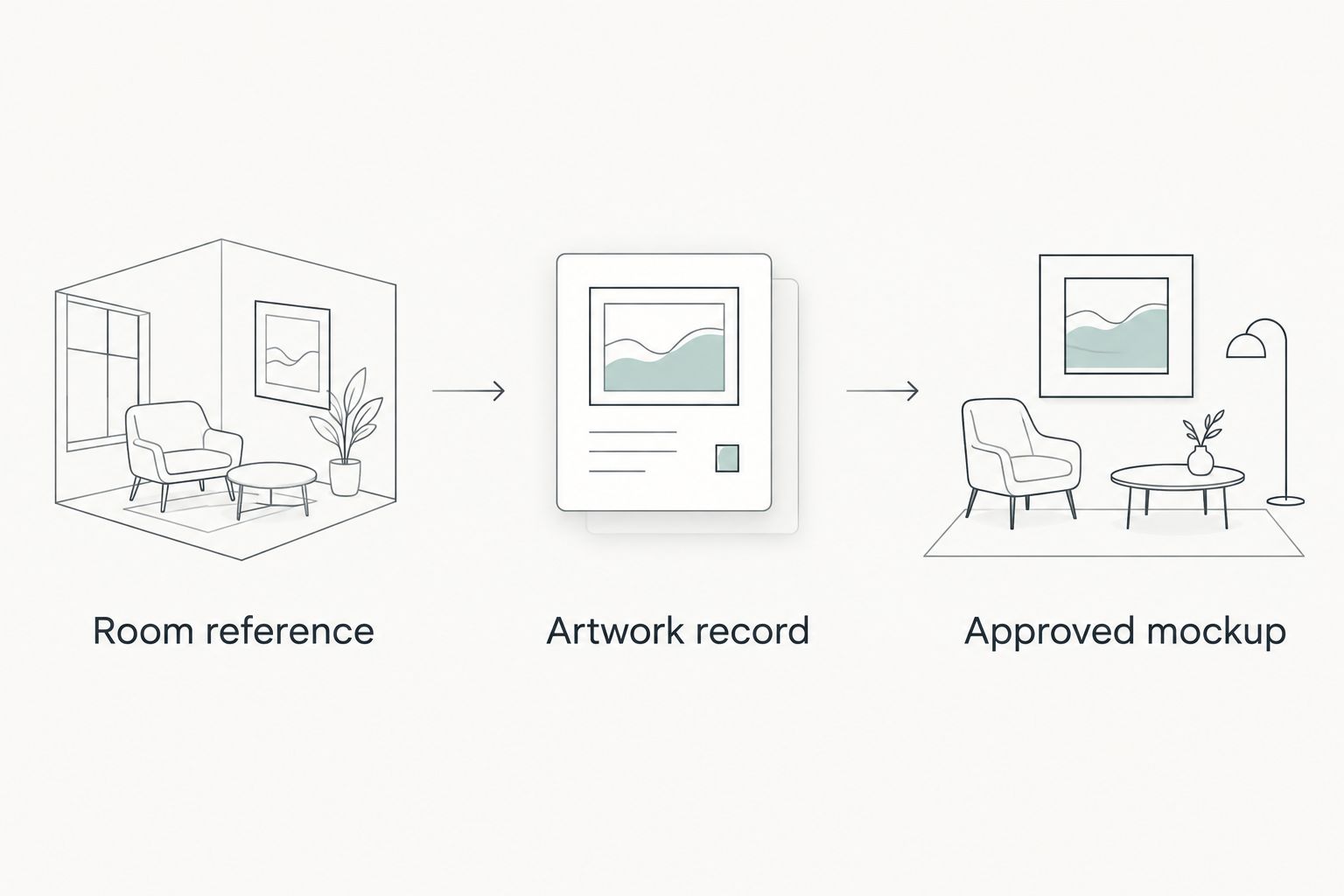
Keep these three record labels together: Room reference, Artwork record, and Approved mockup. They form the handoff from measured space to selected artwork to accepted arrangement.
Verify the physical arrangement before ordering
- Make a paper template matching the proposed finished footprint. Label the measurements in your project notes rather than relying on the photograph.
- Position the template on the real wall without damaging the surface. Check the arrangement from the doorway and usual viewing position.
- Compare the template with the approved mockup. Resolve differences in size, placement, or furniture position before treating the image as final.
- Recheck the selected artwork and intended options on the product page. Confirm any framing details separately when they are not established by that page.
- Save the final selection record with the order documentation. Keep the preview image out of any print-production handoff unless you have explicit rights and a suitable production file.
Expected result: The order refers to a real product, while the installation plan refers to a measured physical footprint.
For app-specific planning, use the separate guide to connecting a room visualizer app to your art order. Keep this workflow's measurement and identity checks even when another tool handles placement.
Update the mockup whenever the room changes
A second useful workflow starts with an existing approved print rather than a new art search. When you repaint, move furniture, or change rooms, reuse the artwork record and rebuild the room reference.
Keep the artwork layer unchanged while testing the new surroundings. This isolates the decorating change instead of quietly replacing the print with something that matches the new rendering better.
| Workflow | Best for | Advantage | Limitation |
|---|---|---|---|
| New artwork selection | Buyers furnishing a room from a concept | Tests the subject before committing to a physical arrangement | Requires product and dimension checks before ordering |
| Existing artwork restaging | Buyers redecorating around a chosen print | Preserves the artwork while testing a different room | Still requires new wall measurements and placement checks |
For each 2026 revision, save a new mockup filename rather than overwriting the approved version. Record what changed and whether the physical footprint stayed the same.
Expected result: You can compare room versions without losing the artwork identity or confusing an earlier arrangement with the current installation plan.
Troubleshooting
The print looks distorted
Return to the untouched artwork preview and resize it proportionally. Do not correct an angled wall by stretching the image arbitrarily; use a perspective adjustment on a separate mockup copy, then check the real footprint independently.
The mockup looks convincing, but the template does not fit
Recheck the measurement reference and the outer frame dimensions. A foreground object, cropped photograph, or omitted mat can make the apparent scale disagree with the installation footprint.
The staging tool keeps changing the artwork
Remove the generated replacement and place the real preview after the room staging is complete. Treat room generation and artwork placement as separate tasks so the print's composition stays intact.
The colors look different across screens and the room
Do not use a room rendering as a color proof. Displays, image processing, and room lighting affect appearance; use the mockup for composition and consult any physical reference materials provided for the intended purchase.
The saved artwork no longer matches the selection record
Compare the exact title and product reference with the original record. Restore the correct preview or explicitly approve a new selection; never let a visually similar image become an undocumented substitution.
Customize your workflow
Expand the workflow room by room, not by adding more automation first. Give each room its own measured reference and approved mockup while keeping shared artwork information in one selection record.
For a 2026 home or office project, add your own fields for wall location, frame decision, approval owner, and installation notes. These are project-management labels, not claims about store checkout fields.
Barksdale Fine Art supplies the print-selection side of this process. The trade-off is that you still need to verify your room dimensions, intended framing, and placement rather than expecting the store to validate a staging image.
FAQ
How do I turn virtually staged wall art into a real fine art print?
Choose a real print first, place its permitted preview in a measured room mockup, and save its product reference with the approved arrangement. Generated artwork alone does not identify an orderable product.
Can I buy the exact artwork shown in a generated room?
Only an identifiable real product gives you a reliable purchasing reference. If the image was generated, replace it with a real artwork preview before finalizing the room concept.
Does Barksdale Fine Art provide virtual staging software?
Barksdale Fine Art is a Shopify store selling D. Lawrence Barksdale's photography and digital art prints. This workflow uses a separate image editor or staging tool for room previews.
Should I scale the mockup to the print size or the frame size?
Scale the complete framed mockup to the intended outer frame dimensions. Keep the print dimensions recorded separately so a mat or frame does not disappear from the installation plan.
Can I upload a product photograph to a staging app?
Confirm permission and the app's image-use terms before uploading a product photograph. Access to a website image does not by itself establish permission to reuse or republish it.
Can I print the artwork directly from my staging screenshot?
Do not treat a staging screenshot as a print-production file. It does not establish reproduction rights or suitable image quality; order the identified product instead.
What should I check before ordering a print from a 2026 mockup?
Check the exact artwork, intended print dimensions, finished framing footprint, and physical wall placement. Confirm these against the product information and your measured template rather than relying on the rendering.
One last thing
A plain paper rectangle can expose a sizing mistake that a polished rendering hides. Before ordering, view the footprint from where you actually sit or enter the room, not only from the camera position used for staging.
Keep that physical check in your 2026 approval record. The final decision should survive both the attractive mockup and the unembellished wall template.